Join Run a Dance Studio by Dance Interactive. Follow the introductory prompts and check the price displayed before placing a room.
Place a room and save the design
The Build menu controls the physical studio. A room placed on the plan is the space you will later staff through the Studios menu. Start with one room you can finish before expanding.
- Open Build, select Building, then choose Studio room.
- Read the price and select a highlighted position on the grid. Confirm the placement and check that the room appears on the plan.
- Select the room to adjust it with Move, Resize or Rotate. Use Add Door when you need the door control.
- For appearance, choose Floor, Back, Left, Right or Front, then select an available color or material.
- Choose Save Studio Room after changing the design, then Done. Look for the studio-save confirmation.
Assign the teacher before enrolling students
Studios opens the room-management panel. A teacher in your collection still needs an assignment: the room summary explicitly shows when nobody can train because it has no teacher.
- Open Studios and select your new room.
- Under Assign a Teacher, select an owned teacher. Check that the room summary now shows the teacher.
- Under Assign Students, select the dancers you want to enroll. During the introductory tutorial, enroll the two dancers requested by the prompts.
- Watch the room's student counter increase and look for the enrollment confirmation.
- Return to the room to see the teacher and dancers in the space you created.
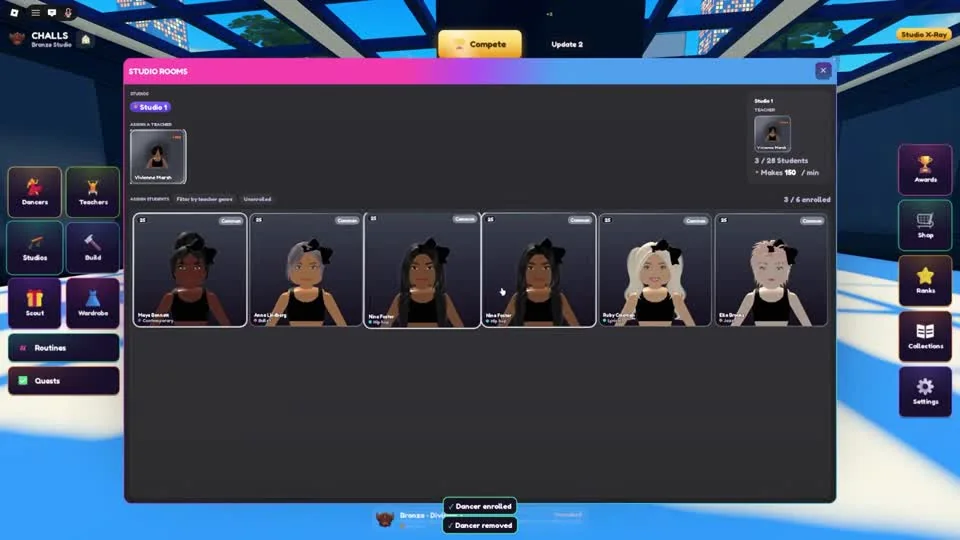
Use the room panel to connect an owned teacher and dancers to the same studio. Check enrollment here after claiming a new dancer.
CHALLS on YouTube · 5:35Find an unassigned dancer and inspect their stats
Use Unenrolled in the room panel to find dancers who still need a room. Filter by teacher genre helps organize the list around the teacher's dance style. The teacher collection includes Jazz, Lyrical, Contemporary, Hip Hop and Ballet filters.
Open Dancers and select a dancer to inspect their detail card. Technique, Timing, Performance, Flexibility and Stamina each have a numeric display, alongside OVR. The card also has Assign to Room, a shortcut to the room-management panel.
- If a room is empty, check the student counter rather than assuming that owning dancers enrolls them automatically.
- If dancers are not training, check that the same room has an assigned teacher.
- Use the dancer detail card when reviewing progress before choosing performers for your next routine.
Spend toward a working room
Finish the first room's staffing and enrollment before buying another empty room or a set of props. This gives your first dancers a training setup while you learn choreography.
Read the next room's price each time: successive rooms cost more. The catalog also separates rooms from props, which go into your inventory. Use the purchase description to decide what you are adding instead of treating every building item as training space.
Claim a dancer, then enroll the new arrival
Quests and daily rewards are separate from room assignment. A reward that adds a dancer to your collection does not finish the job of placing that dancer in a training room.
In the walkthrough, CHALLS claims available rewards, returns to Studios and selects the remaining dancers. The useful checkpoint is the enrolled counter, not the number of cards you own.
- Open Quests and use Claim on a completed task; read the offered daily reward before collecting it.
- Return to Studios and open the room with your assigned teacher.
- Find an unenrolled dancer, select their card and confirm that the enrolled counter changes.
- Look back into the room to check that the new dancer is present.
Questions before your next run
Why are my dancers not training?
Open Studios and check the chosen room. It needs an assigned teacher and enrolled dancers. Owning them in your collection does not complete those room assignments.
Where can I see dancer stats?
Open Dancers and select a dancer. Their detail card shows Technique, Timing, Performance, Flexibility, Stamina and OVR.
Watch the walkthrough
Follow the original gameplay alongside these steps. Menus and balance can change after a video is published.