Have a studio room and an available dancer. Work through the routine guide if you have not yet recorded and saved a performance.
Read the event before editing the routine
Compete opens a panel with Schedule, History and How to Win tabs. Schedule shows upcoming event names, their dance format, countdowns and entry status. Those details tell you which performance to prepare.
The routine tutorial recommends music that matches the competition genre. A ready solo should be compared with a solo event; read the format instead of relying on the event name alone.
- Open Compete and select Schedule.
- Choose an upcoming event to prepare for and read its genre and Solo or Group label.
- Note whether entry is open or whether the panel shows a sign-up countdown.
- Open How to Win to read the game's current competitive guidance before finalizing the performance.
Check the training setup
Dancers develop through the studio training setup. Before rehearsing, open Studios and check the room that contains your intended performers. It needs a teacher assigned as well as students enrolled.
Use each dancer's detail card to review their visible skills. This is more useful than guessing progress from appearance or assuming a newly owned teacher is already training someone.
- Select the room in Studios and confirm its teacher is shown.
- Check the enrolled-student count and the dancers assigned there.
- Use Dancers to inspect Technique, Timing, Performance, Flexibility, Stamina and OVR.
- Return to the routine you intend to use rather than splitting attention across several unfinished performances.
Rehearse the performance you intend to use
Keep the rehearsal tied to the event. Review the song's genre and the routine's format, then watch the movement as a complete take. Fix one visible problem at a time so you can tell whether the edit helped.
Costumes and Studio Wear serve different purposes in Wardrobe. Use the Costumes area for the group's competition outfit; Studio Wear controls everyday clothing. If the event gives a clothing instruction, read it before choosing the outfit.
- Check that the routine's format and music fit the event you selected.
- Review playback and revise any move order or movement that you want to improve.
- Finish with Save & exit and confirm the routine was saved.
- Check the intended performance outfit in Wardrobe.
Complete all three rows before you press Enter
The competition form keeps the routine, dancer lineup and costume in separate expandable rows. The walkthrough shows a saved routine selected first, dancers filling the lineup next, and the costume selected last.
Use the format and lineup requirement shown for your selected event. The recorded example uses a group; it does not establish that every event requires the same number of dancers.
This walkthrough reaches the entry form and Enter action. It does not show a completed judging round, so use the event panel for prize rules rather than expecting a guaranteed payout.
- In Compete > Schedule, choose Sign Up for the event you prepared.
- Open Choose a routine and select the saved routine with the matching format and music.
- Open Choose your dancers. Fill the displayed lineup slots and check that each intended performer appears.
- Open Choose your costume and select the performance outfit.
- Review the row completion indicators, the event format and the remaining entry time; then use Enter.
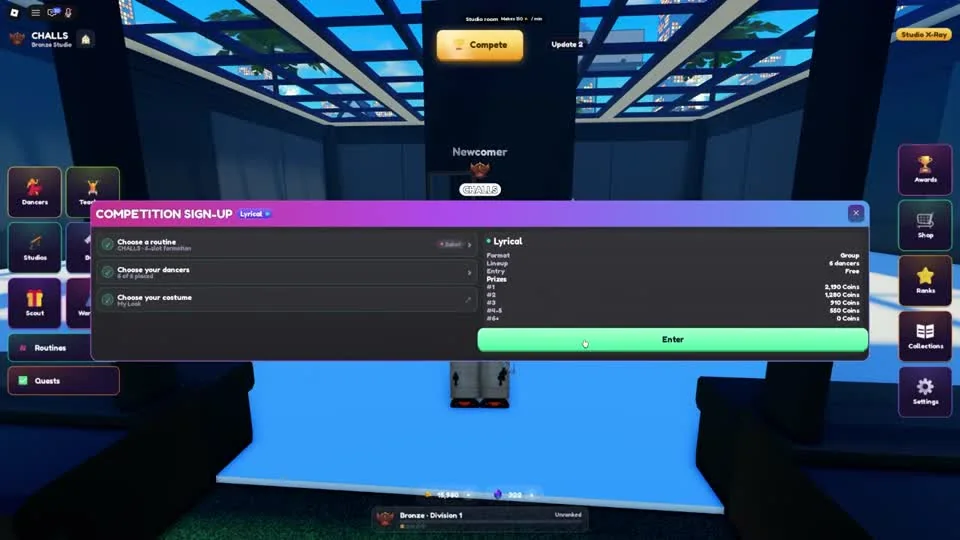
All three rows are completed in this group-entry example. The green Enter button is the final submission action; selecting the routine alone is insufficient.
CHALLS on YouTube · 7:58Questions before your next run
Why is the event's sign-up control unavailable?
Read its countdown and entry status. A sign-up countdown means the entry window has not opened yet. Use Sign Up when the event is marked Entry Open.
Do competitions all use the same routine format?
The schedule labels events as Solo or Group. Check the label and dance genre before preparing the performance.
Why is my routine saved but I am not entered?
Routine editing and event sign-up are separate. Open the event, choose the routine, fill its dancer lineup, choose the costume and finish with Enter.
Watch the walkthrough
Follow the original gameplay alongside these steps. Menus and balance can change after a video is published.