Use the clothing pieces and design options available on your account. Read an event's outfit instructions first if you are preparing a specific competition look.
Choose the right wardrobe section
Wardrobe opens the Costume Studio. Open the Designer starts a custom look. Costumes is the area for the outfit your group competes in; Studio Wear changes everyday studio clothing. Collection lets you review the costume pieces you own.
- Open Wardrobe.
- Choose Open the Designer to create a look.
- Choose Headpiece, Top or Pants for the clothing section you want to edit.
Build a complete look
Choose an owned piece, then work through the available patterns and colors. Some options have a lock; use available options to finish the outfit rather than leaving the first design incomplete.
The live preview has Full and Up close views. A close view helps with details, while the full view lets you see whether the top, pants and headpiece work together.
- Select a piece in the chosen clothing section.
- Pick an available pattern and a color.
- Switch to another clothing section and repeat for the pieces you want to change.
- Check Full to review the entire outfit, then Up close for details.
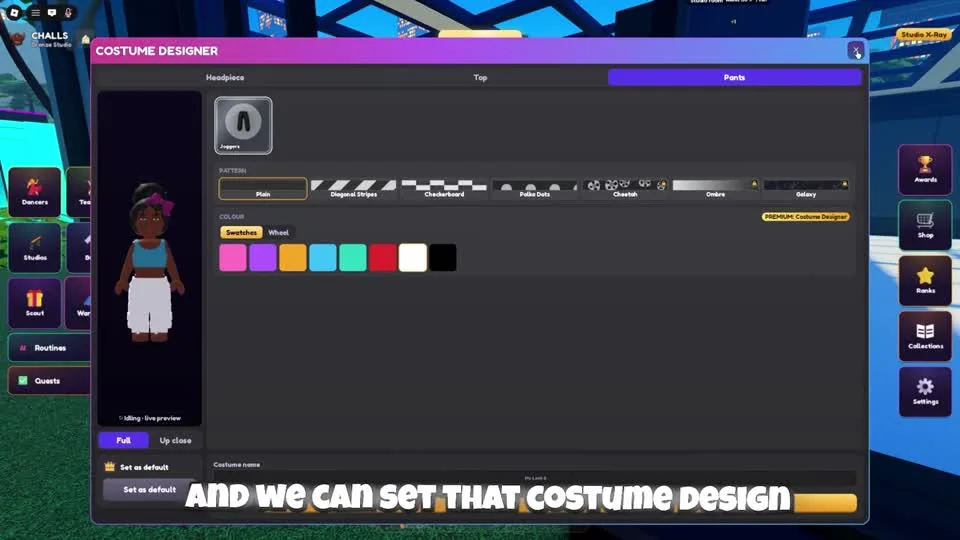
Review the complete look before saving. The designer preview is separate from selecting that costume in a competition entry.
CHALLS on YouTube · 5:22Name it and save it
Give each saved look a distinct name so you can recognize the version you want later. The designer also shows your used costume slots, which helps you decide whether to make a new variation.
For an early design, a small color palette is easy to review across the complete outfit. Compare pieces together before saving instead of judging each one separately.
The save flow can display a choice between Buy Once and a Costume Designer pass. Read that dialog before confirming; designing a look and acquiring it are distinct steps. Choose based on the price and option on your own screen.
- Enter a recognizable name in Costume name and inspect the full preview.
- Select Save costume and read any purchase or ownership dialog that appears.
- After the outfit is available, open the competition form and use Choose your costume to select it.
- Use Studio Wear only when changing everyday clothing rather than the performance outfit.
Questions before your next run
Where do I change everyday studio clothing?
Open Wardrobe and use Studio Wear. The Costumes area is for competition clothing, while Open the Designer creates a custom look.
How do I save my costume?
Enter a name in Costume name and select Save costume after checking the full preview.
Watch the walkthrough
Follow the original gameplay alongside these steps. Menus and balance can change after a video is published.