Have a dancer available and a clear routine goal. If preparing for an event, check its Solo or Group format and dance genre in Compete first.
Name the routine and set up your solo
A solo keeps the first editing session manageable because you place only one dancer. The setup screen also offers Group for later performances. Song cards show their genre, and the tutorial recommends matching the music to your competition's genre.
- Open Routines and begin the routine setup.
- Enter a recognizable name and choose Solo.
- Choose a song. Mirror is labeled Jazz, Big Mood is Hip Hop, and Velvet Arabesque is Ballet.
- Select a + position on the stage grid and place your dancer.
- When the setup is complete, select Continue to open the Routine Creator.
Build and rearrange the move timeline
The move list has category tabs including Legs, Jumps and Turns. Each move has a preview control and a + button. Adding the move puts it on the timeline, where you can rearrange the sequence.
- Preview a move to see what it does, then use + to add it.
- Add a short sequence. The tutorial begins with one move and then asks for two more as an editing exercise.
- Select a move on the timeline. Use Drag to reorder it, Swap to replace it, or X to remove it.
- Use playback to check how the sequence fits together before recording movement.
Record, review and save
Record Movement becomes useful after your timeline contains moves. The recording view provides a countdown and stage controls, including Restart for another take. Keep the first movement path simple enough to inspect in playback.
- Choose Record Movement and follow the countdown.
- Use the stage controls to make the take. Restart if you need another attempt.
- Review the playback. Use Back if you need another edit.
- Choose Save & exit when ready and look for the routine-save confirmation.
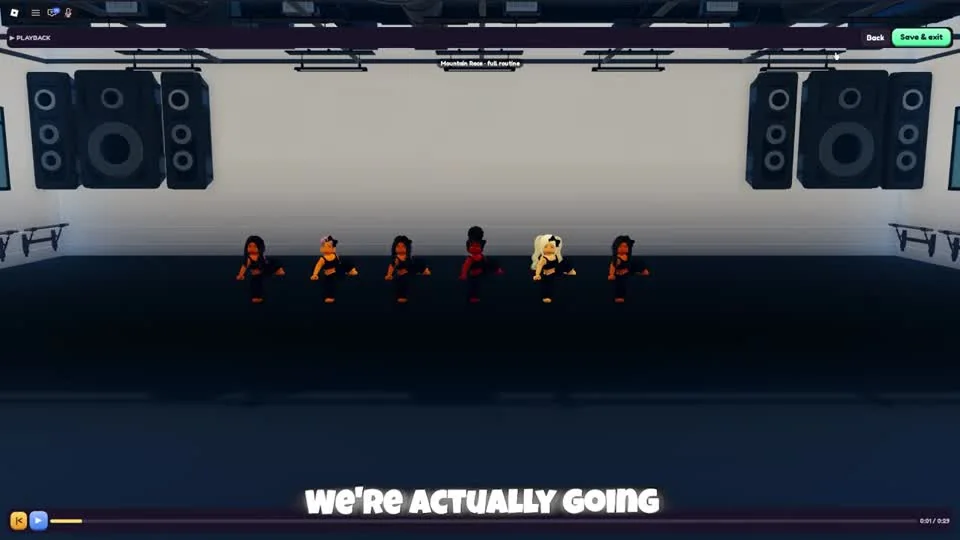
The recording is still in its review screen. Finish with Save & exit before looking for the routine in competition sign-up.
CHALLS on YouTube · 7:28If you cannot continue or record
Return to the part of the setup that is incomplete. A solo needs its dancer placed on the grid; choosing a song alone does not fill that position. The Routine Creator also requires at least one timeline move before Record Movement is available.
For a first routine, a few readable moves are easier to adjust than a long sequence. This is an editing approach: save a complete short attempt, watch it, and change the part that needs attention. The tutorial's small sequence is a control exercise rather than a winning recipe.
- Check the routine format, song and dancer placement before leaving setup.
- Check the timeline when Record Movement is unavailable.
- Finish with Save & exit and confirm the save instead of assuming that previewing a routine saved it.
Use a saved group routine for a group event
The same editor supports Group as well as Solo. CHALLS switches to Group, fills stage positions, adds moves and records a short routine before returning to the competition form.
Saving a routine and choosing performers for an event are separate steps. A routine saved in the editor can appear in the event selector; its existence does not automatically submit an entry.
- Choose Group during setup when the event requires a group performance.
- Fill the required dancer positions, add moves and use Record Movement.
- Review the take and choose Save & exit.
- Open the competition sign-up and select the saved routine by name.
Questions before your next run
How do I reorder moves?
Select a move on the Routine Creator timeline and use Drag to change its order. The same selection exposes Swap and X for replacement and removal.
Why is Record Movement unavailable?
Check that you have added a move to the timeline. The editor requires at least one move before recording.
Which song should I choose first?
If you are preparing for a competition, use the genre on its event listing and choose matching music. Song cards show their dance genre.
Watch the walkthrough
Follow the original gameplay alongside these steps. Menus and balance can change after a video is published.